Key Takeaways from Our Webinar: Systemize Power Play: Track Complex Jobs with Phases
If you’ve ever juggled a multi-room project with staggered timelines or dealt with a last-minute slab crack requiring a remake then you have probably experienced the pain involved when managing larger projects with multiple timelines and activities firsthand.
Phases is one of the most powerful features in Systemize and was built to help shops tackle large or multi-stage jobs. Once you get the hang of this feature, it changes how you manage complex jobs, handle reworks, and view your reporting data. Our webinar Systemize Power Play: Track Complex Jobs with Phases provides an overview, a demo, and practical tips for using Phases to keep every project on track.
What Are Phases in Systemize?
Think of Phases as “jobs within a job”.
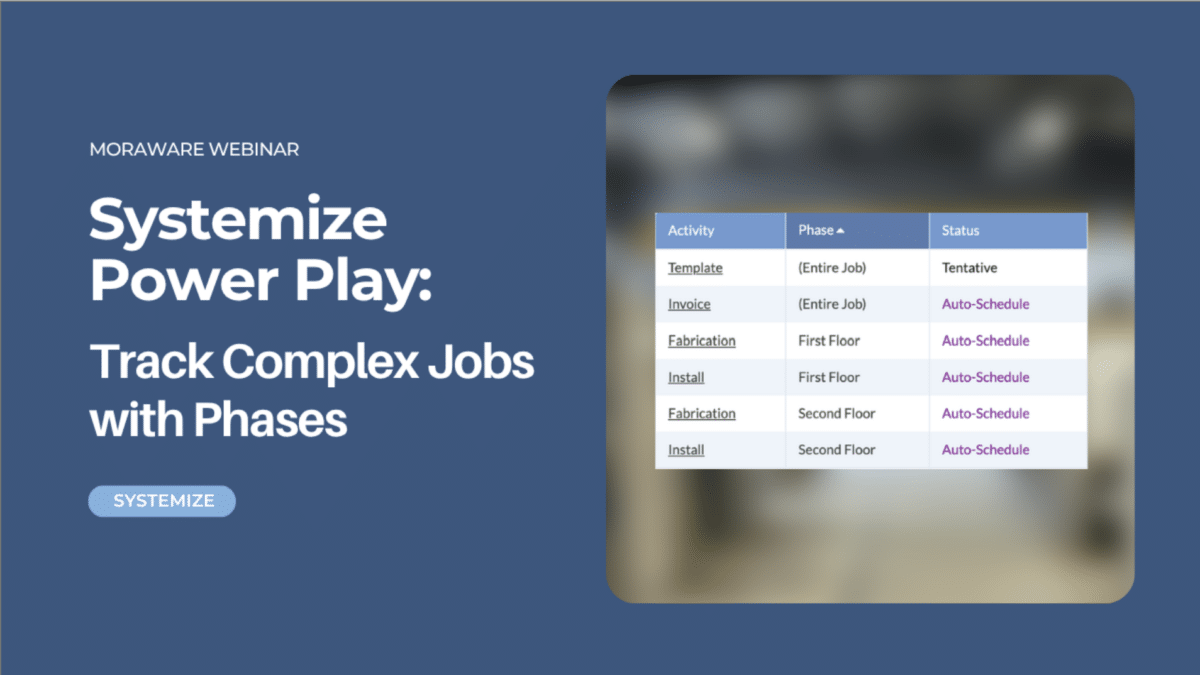
In Systemize, you can create multiple Phases inside a single job to organize activities, forms, and files for larger, more complex projects, or any job that has multiple timelines. Each Phase operates almost like its own mini-job, with its own set of activities and forms, while all the information stays connected.
For example, assume you have a job for a large home renovation. The first floor is being fabricated and installed one week, and the second floor the following week. With Phases, you keep it all in one job but treat each floor as its own trackable phase. Your team knows what’s happening and when, things are clear, and nothing gets tangled together.
Setting Up a Phase Template
Before you start creating phased jobs, we recommend building a dedicated “Phase Template” in your Settings. This can eliminate duplicate forms and keep your process consistent.
A Phase Template pre-loads the specific activities and forms you want attached to each Phase. This can include fabrication and install activities, plus your area/room details form, so you’re not manually rebuilding that structure every time. That becomes your reusable building block for every phased job going forward.

Two Ways to Use Phases: Planned vs. Adding Phases to an Existing Job
There’s a distinction between starting a job knowing it will have phases versus adding a phase to a job that’s already in progress. Both are supported in Systemize.
Setting Up Phases for a Job
When you know upfront that a job will involve separate timelines (kitchen this week, bathrooms next week), you can set it up that way from the start. You set up a Phase for each stage.

Using Phases for Reworks and Additions
With Phases, it’s also easy to make adjustments to an existing job as things come up.
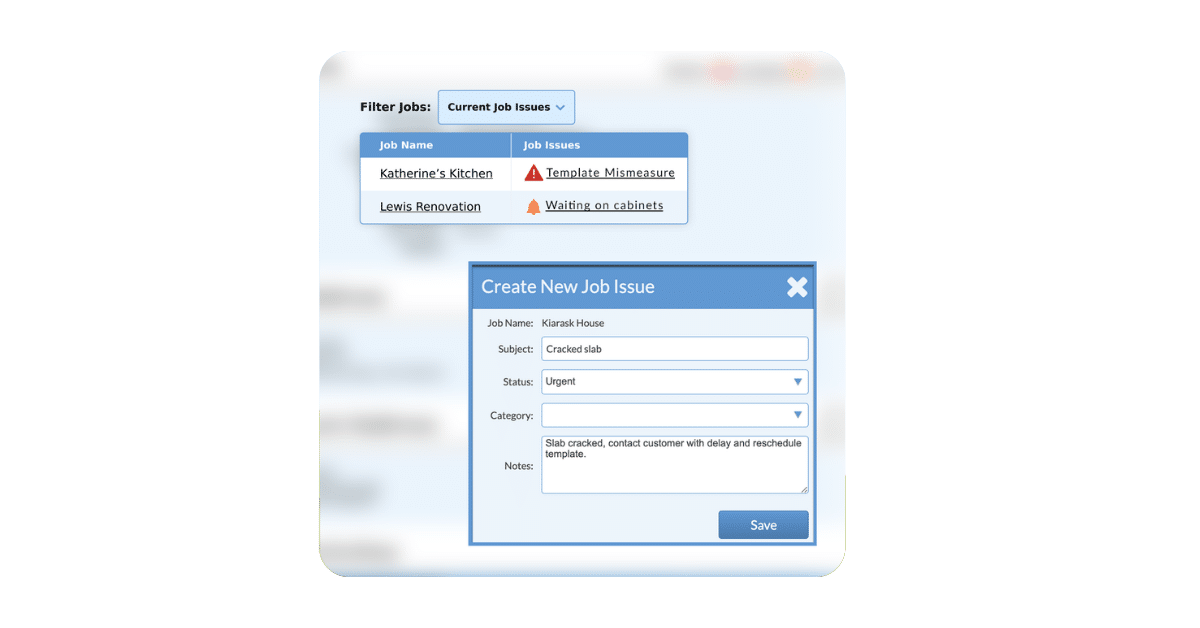
Remakes and changes happen. A slab cracks during install or measurements get missed. Or a customer calls and adds pieces at the last minute. Whatever the reason, when you need to go back and redo part of a job or add something new, Phases give you a way to handle it without creating a brand new job or muddying your original records.
Phases give you a cleaner path. When a remake comes up, you can add a new Phase directly to the existing job as a “Rework” or “Remake” so you can handle the scheduling and documentation there. Your original job record stays untouched. The remake gets its own fabrication and install activities, its own timeline, and its own documentation trail.

The win here is visibility. Your team can see exactly what needs to happen, when it needs to happen, and that it’s tied to a specific job, without any confusion about whether this is new work or a redo. Your remake is fully tracked and schedulable, and your square footage data for the rework is cleanly separated which makes a difference in creating detailed reporting.
Pro tip: One small addition that pays off big is including a “Remake” checkbox on your forms. It takes two seconds to check during the workflow, and it gives you the ability to filter remake work out of your regular production data when you’re reporting. That means you can actually see your rework rate over time. It’s the kind of insight that helps you identify patterns and make real operational improvements. |
How Phases Improves Reporting Accuracy
Here’s a common reporting problem that we hear about from fabricators. You have a large job with fabrication happening across two months, and when you pull your monthly report, the square footage all lands on the last activity date. Your May numbers look light. June looks inflated. Neither is accurate.
Phases solves this by tying each phase’s square footage to the month when that phase’s work actually happened. Fifty square feet fabricated in May shows up in May. Fifty fabricated in June shows up in June. Your monthly production numbers reflect what actually happened.
The same logic applies to your calendar view. On a phased job, each phase shows its own subtotals on the dates that work actually occurred. On a non-phased job with multiple activities spread across time, everything gets stacked and reported on the last date which makes day-to-day scheduling visibility much harder.

Using Phases improves reporting accuracy for both square footage and production timelines. You get much more detailed reporting and a better view of your shop’s activity.
If a job is really big, you can also filter the phases. For example, select bathrooms to see the related activities, forms, and files for just the bathrooms on that project.
Pro tip: To get the full reporting benefit of Phases, your square footage data needs to live in a form, not a job field. Job fields are tied to the whole job and can’t be separated by phase. If you’re not sure how your shop is currently set up, it’s worth a quick conversation with Moraware’s support team before you start leaning on Phases for reporting. |
Give Phases a Try
Phases in Systemize gives countertop fabricators a way to handle the heavy lifting of jobs with multi-timeline projects, mid-stream remakes, and reporting that needs to reflect what happened and when. It isn’t a complicated feature, but it does require a shift in how you think about setting up jobs in Systemize. Once your team has a consistent workflow, whether that’s planning phases from the start on complex jobs, or adding them mid-way for remakes, it becomes second nature.
The benefits include less chaos on complex projects, cleaner remake tracking, and monthly reports with more detail and accuracy. If you need help thinking through how to set this up for your specific operation, Moraware’s support team would be happy to discuss this with you and your team. You can also reach the Support team directly through the Help button inside Systemize.
Questions? Reach out to your Moraware Customer Support or watch the full webinar recording for a step-by-step walkthrough. There is also detailed information in the Knowledge Base. Curious about Systemize? Get more information about it here: Systemize Job Scheduling and Tracking |