Key Takeaways from Our Webinar: Tracking Issues and Reworks
Every shop runs into issues. A slab breaks, or a sink shows up missing. Maybe something gets scratched. It’s frustrating but you deal with them. The key is to track issues, fix them, and learn from them so you can avoid them in the future.
In our recent Systemize PowerPlay webinar: Tracking Issues and Reworks, our experts walked through the built-in tools for tracking job issues and reworks, from a quick issue alert on a job all the way to a report that totals up what those reworks are actually costing you. Here are the key takeaways.

Start with Job Issues for visibility
Every job in Systemize has an issue section. Fill it out and a warning bell appears at the top of the job, on the calendar, and in your job views so it’s easy to spot. Anyone who opens that job or scans the calendar can see immediately that something needs attention.

A few things make this feature more useful than a sticky note on a monitor:
- Job issue notes are timestamped and attributed. Every time someone adds a job issue or changes the status, you see who did it and when.
- Categories tell you where issues come from. You can add custom issue categories to tag and organize issues for more visibility (ex. fabrication, template, install, or whatever makes sense for your shop).
- Status keeps the list clean. Mark an issue urgent, open, or closed for easy scanning. Once it is closed, it drops off your open issues list.

Build views that work like to-do lists
Views turn all this tracking into something your team acts on:
- Jobs with issues. Customize a job view, add a filter for job issues, select urgent and open, and save it. That becomes a running to-do list. Close an issue and the job falls off the list so you can focus on those open job issues.
- Filter by category. If you only want to see fabrication issues today, add that filter.
- Manager approval queue. Create a view showing jobs where the rework manager approval field is empty. Managers can click straight into the form from the list, approve it, and watch it drop off.
Add a form when you need more granular details
Job Issues are built to alert people. When you want to capture more information about what actually happened, a common practice we have seen from customers is using a form to capture a deeper level of detail.
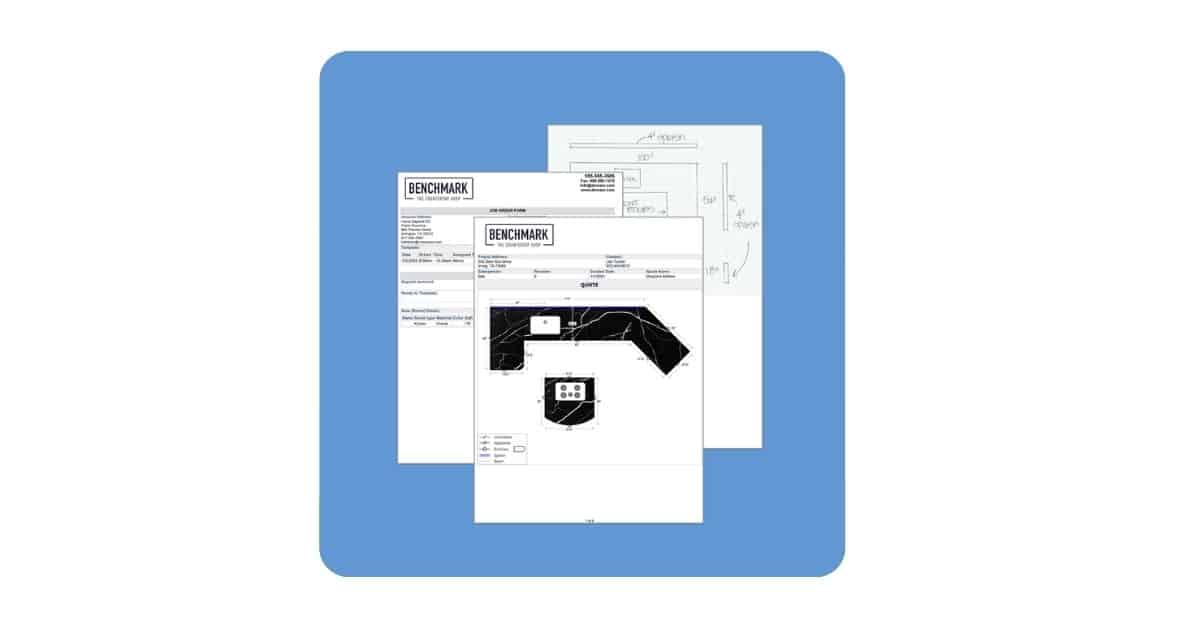
A rework form lets you track and report on the things that matter: what caused the issue, what needs to happen to fix it, a reason code, the square footage involved, and the remake cost. Whatever details are important to your team. This provides a clear picture of the issues affecting your jobs.
The point is not to place blame. It is to take issues as a learning opportunity, to see where issues are happening, and to decide where to focus for improvement going forward.
You do not have to build the form from scratch. The Moraware Knowledge Base has a sample rework form you can download and import (make sure to Right-Click and Save As). We share step by step instructions on how to import this form on this page. What looks like a page of code turns into a finished form as soon as it imports. From there you can edit the reason codes, adjust fields, or map the job number to match your system.

Report on what issues are costing you
Two key reports are worth diving into:
The job issues report shows all urgent, open, and closed issues along with their categories. It is a good pulse check, and taps into the built-in issue feature.
The rework report pulls from your form, so it can total the real numbers. Choose your time selection (week, month, or year), set the subject area to job form, choose your rework form as the template, and pick remake cost as the measure. You get a clean total to understand what reworks cost your shop for the selected time period. Save that view so you can come back to it.
This report is what customers say make Monday meetings and monthly reviews productive. Your team can look at the numbers, see where the errors happened, and decide what to do to minimize them.

Some time saving and automation tips
Using CounterGo? Pull square footage from CounterGo and flag it as a remake
If you push information from CounterGo into your job forms, there is a smart way to handle remakes. Duplicate the piece that needs to be remade, add it as a separate area, and zero out the cost since the customer will not be charged. Then check the remake checkbox on the form.
That one checkbox does a lot of work. You can run a single report for total square footage installed or fabricated this month that includes reworks, and then filter that same report down to just remakes. Without the checkbox, you would need two separate reports and some mental math to add them together.
If you fill out forms manually instead of pulling from CounterGo, the checkbox is still worth using for exactly the same reason. This helps you track what was a remake and what was a regular job.

Use phases and templates for reworks to save time
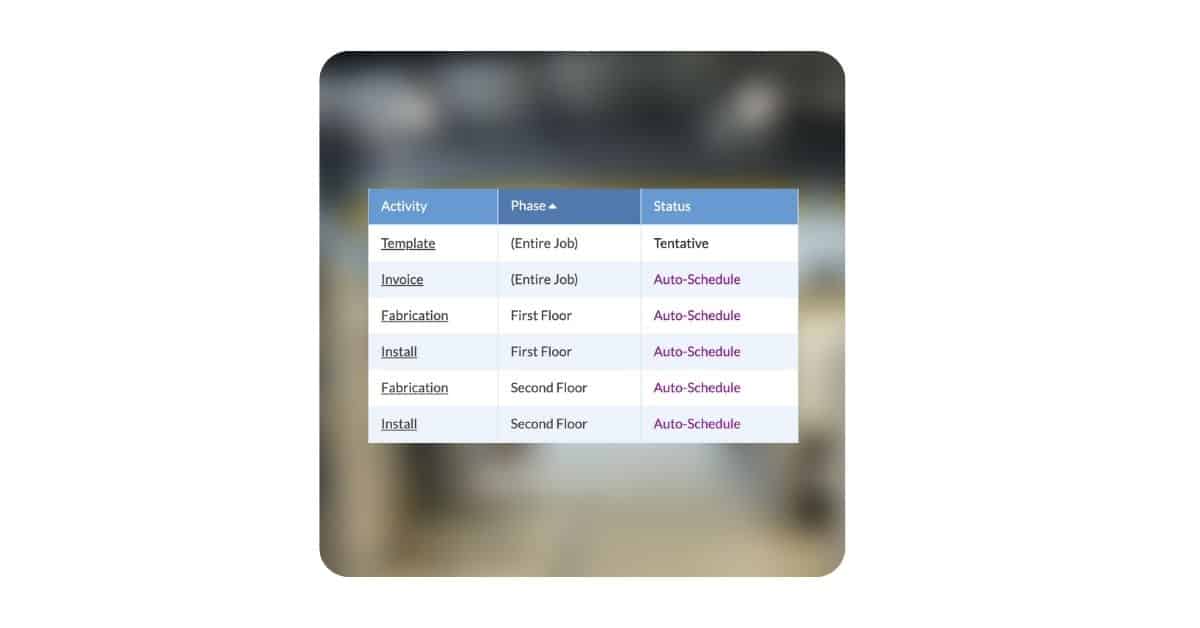
Instead of adding the form by hand every time, Systemize makes it easy to build a Rework template. You can choose the activity types you want, such as fabricate and install, plus the forms you want pulled in.
When a remake comes up, you add a Rework phase to the job, select that template, and Systemize pulls in the new fabricate and install activities along with the rework form, ready to fill out. Schedule the phase and the whole remake is visible on the calendar like any other work. Phases give you a way to handle remakes without creating a brand new job. Your original job record stays untouched. The remake gets its own fabrication and install activities, its own timeline, and its own documentation trail.
If you want to learn more about using Phases in Systemize, check out our webinar: Track Complex Jobs with Phases for a detailed walkthrough or read a recap summary on our blog.
The information you get out is only as good as what you put in
These tools work when your team consistently logs the issue, fills out the form, and closes things out. Do that for a few months and you can lower those mistakes and reworks..
If you want help setting any of this up in your own system, support calls are free and unlimited for Moraware customers. Click the help icon in Systemize to schedule time with a support specialist who can tailor the forms, views, and reports to how your shop actually works.
You can also watch the full replay, along with our webinars on phases and activity packets, at moraware.com/events.
Questions? Reach out to your Moraware Customer Support or watch the full webinar recording for a step-by-step walkthrough. There is also detailed information in the Knowledge Base. Curious about Systemize? Get more information about it here: Systemize Job Scheduling and Tracking |