Key Takeaways from Our Webinar: Systemize Power Play: Maps and Managing Install Teams
Managing install crews involves juggling a lot of moving pieces. Who’s going where, which crew is closest to which job, are two routes crossing each other for no good reason? It’s a lot to consider, especially if your shop is growing when scheduling can become more complex involving different dependencies, an expanded coverage area, and more jobs and crews to manage.
That’s exactly where Humboldt Countertops found themselves a decade ago when sisters Kari and Kelley took over their family owned countertop fabrication shop from their dad. They inherited his passion for technology and looking for better ways to do things which has influenced their approach to running the shop.
One of their initial projects was to move from relying on paper files and a clunky scheduling system to cloud-based centralized job management and scheduling. Today, they’ve doubled their employees, they’ve tripled their revenue, and Systemize is at the center of how they handle job scheduling and run their install teams.
At our recent webinar, Systemize Power Play: Maps and Managing Install Teams, they joined us alongside our support team to walk through how the Maps feature can help countertop shops get smarter about scheduling crews and reclaim time. You can read a summary of the webinar in this post, and you can also watch the full webinar on-demand here to see a demo of the mapping feature in action.

Why Mapping Matters More as You Grow
When you have one installer, routing is simple. When you have multiple crews starting from different locations, heading to different parts of town, the inefficiencies start stacking up fast. Two crews might be driving past each other’s job sites. One installer might be doing a 28-minute drive when a quick reassignment could cut that to 15.
The updated Maps feature in Systemize was built specifically to solve this. Here’s what it does:
Set a starting location for each crew member. You can configure a default shop address, or set individual start locations per assignee. This is helpful if anyone is driving in from home rather than coming in first. This takes about 30 seconds to set up.
Visualize every route, color-coded by installer. Once you pull up the map for the day, each crew’s route displays in their assigned color, with their starting point marked and estimated travel time shown. If things look tangled such as routes overlapping, or crews passing through each other’s territories, you know immediately that something could be optimized.
Reassign and refresh in real time. You don’t have to close out of the map to fix a scheduling problem. Just go back to the calendar, drag an activity from one crew to another (the same drag-and-drop that first sold Kari on the software at an ISFA event demo years ago), and refresh the map. Routes update, travel times recalculate, and you can see the difference instantly.

Getting Visibility Across the Whole Team
Beyond the map itself, one of the things Kari and Kelley emphasized was how the calendar views have made it possible to drill into operational areas, get a visual of daily activities, as well as to help delegate key tasks such as scheduling.
“Scheduling falls under my domain,” Kelley shared during the webinar, “and I’m realizing as an owner that I need to start shedding some responsibilities. Being able to set up your calendar to see where the different crews are, mapping out routes, and knowing where everyone’s going to be at the same time is crucial to running the business efficiently.”
The key to making that possible is customizable views. In Systemize, every team member can have a calendar view set up the way they prefer – by assignee, by activity type, by time of day, by day or week. Views can be saved, set as a default, or kept private. One person on your team might want to see everything on one calendar; another might prefer a clean install-only view. Both can have exactly what they need.

Activity Packets: One Print, Everything They Need
Once you’ve scheduled the crew and confirmed the route, the next thing installers need is information. That’s where activity packets come in.
An activity packet is a collection of forms that prints together as a single document, instead of hunting through a job record to print each form one at a time. You configure them once and after that, printing is just a click away.
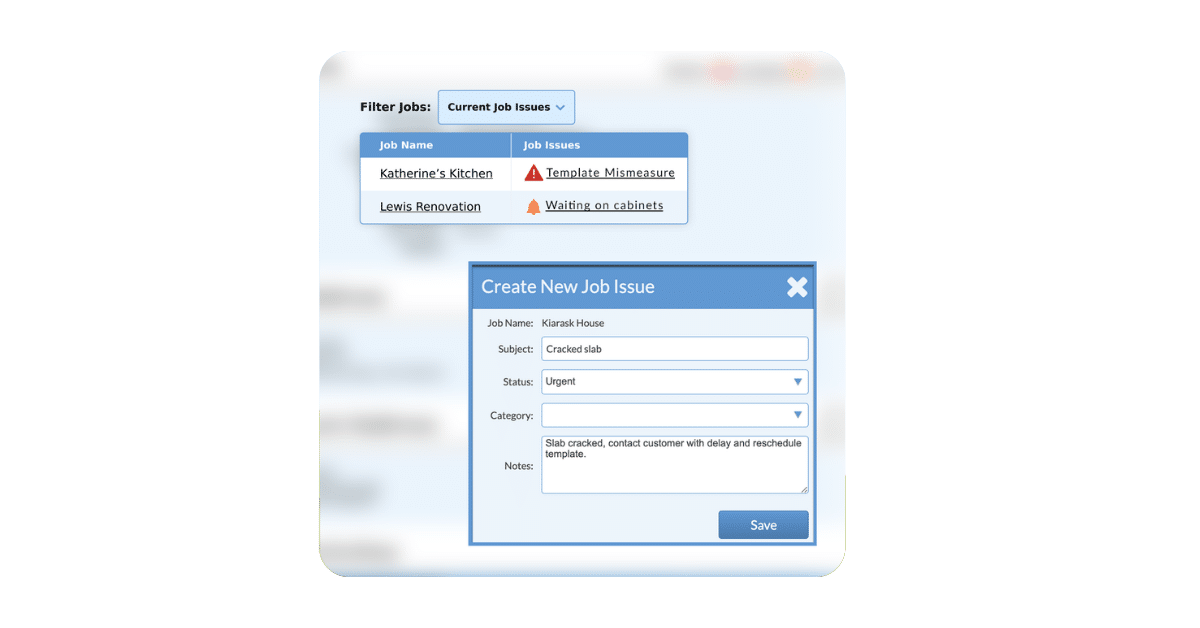
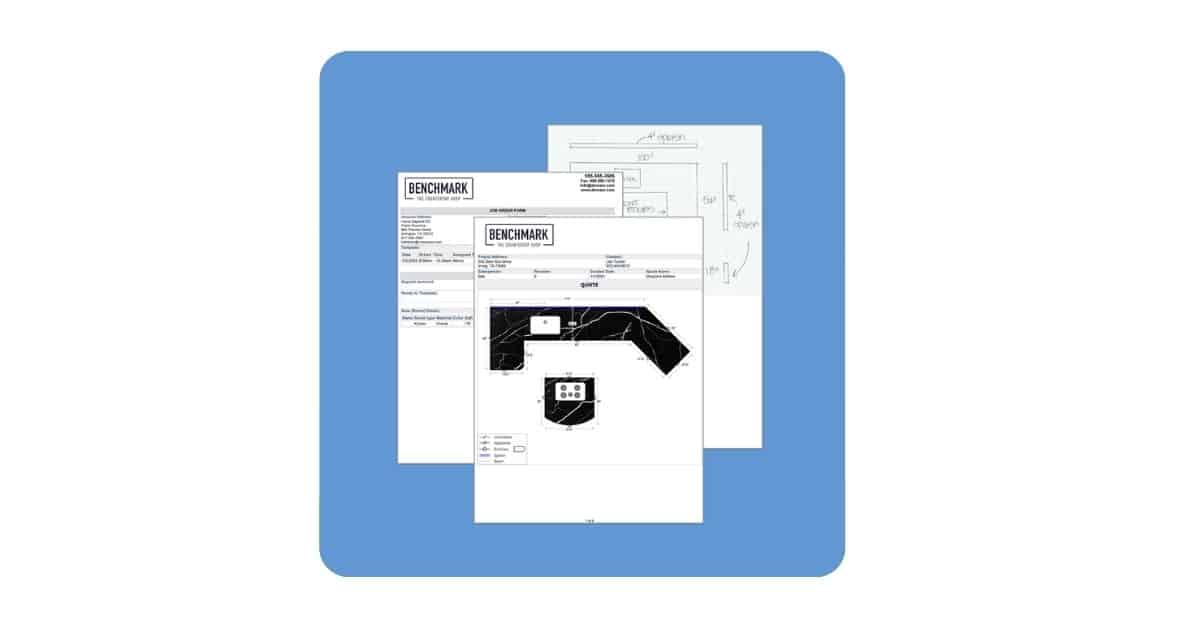
Humboldt Countertops uses both a template packet and an install packet. Each contains exactly what their crews need: loading checklists, activity-specific details, signature lines for customer sign-off, job issue forms, slab photos, customer drawings, and order layouts. Here is a sample packet so you can get a sense of what can be included.
One practical benefit Kelley highlighted: when something changes, for example if you need installers to start logging fuel and mileage, you update the packet once, and every future print reflects it. New team members don’t need to know what used to get printed, the system handles it.
If you have CounterGo, the packets can also pull in your quote and order details and layout drawings automatically, which is especially valuable for installers working complex jobs.
Advice to Fabricators: Don’t Try to Do It All at Once
During the webinar, Kelley offered some useful advice to other fabricators just starting to build out their estimating, scheduling, and inventory setup.
“You don’t have to use every feature all at once,” she said. “We started with scheduling because that was the most critical piece. Then we moved our estimating into CounterGo. Then we started allocating material with Moraware Inventory. Little by little.”
For shops that feel overwhelmed by the idea of implementing a new system, that’s worth considering. You don’t have to migrate everything on day one. Start with the part of your operation that’s costing you the most time or causing the most errors. Get that working the way you want. Then layer in more.
Kari added that their biggest early win was simply making the shift away from papers and folders and into a shared system where everyone could see it in real time. “If somebody changes a sink, a faucet, or the date of install it’s all there. It’s instantaneous.” That single move, from paper files on everyone’s desks to one real time, reliable source of information changed how the whole shop operated.
Ready to See It in Action?
Whether you’re managing two installers or a fleet of crews across a region, the Maps feature in Systemize is designed to help you schedule smarter, reduce wasted drive time, and give you visibility into every crew’s day without having to call anyone. Your team will be thrilled to save time in their day with more efficient routes.
If you’re already a Systemize user and haven’t explored the Maps or Activity Packets features, this is a good time to dig in. Our support team is available to walk you through setup, reach out via the help button inside Systemize, or schedule a call here.